-

Written By Rohan Wiese
-
Approved By
Shivam Rathore -
Updated on July 14th, 2025
Learn How to Export Excel Contacts to iPhone/iPad Today!
Fact-checked and reviewed in accordance with our
Editorial Policy
Summary:- Many people store contact details like names, phone numbers, and emails in Excel spreadsheets. However, if you switch to a new iPhone or iPad or want to access these contacts on your iOS device, you’ll soon realize that Excel files aren’t directly supported. To view or use Excel contacts on iPhone or iPad, you must first convert them into a compatible format like vCard (.vcf). In this blog, we’ll explain how to export Excel contacts to iPhone or iPad using both manual and automated methods. We’ll also highlight the Aryson Excel to vCard Converter for a faster and accurate solution.
Some Major Use Cases to Convert Excel to vCard for iPhone
Importing Excel contacts into your iPhone or iPad can be helpful in many everyday situations. Below are some common use cases:
- If you’re moving from a Windows PC or Android phone to an iPhone or iPad, you’ll want to carry your Excel-stored contacts with you.
- Instead of keeping contacts scattered across files and apps, importing them into iOS puts everything in one place.
- Organizers often use Excel to manage their contact lists for events, seminars, or campaigns. Having these contacts synced with their iPhone ensures better coordination.
- In case of accidental deletion or phone reset, restoring your saved Excel contacts to your iOS device helps recover vital information.
- Field agents or sales executives can keep customer data handy on their iPads while visiting clients.
- Professionals often maintain client or team contacts in Excel. Importing them to iPhone allows quick access while on the move.
These use cases show how exporting Excel contacts into iPhone or iPad can save time. It improves efficiency and ensures smooth communication.
Methods to Export Excel Contacts to iPhone
To help you move your contact list from an Excel file to your iPhone easily, we’ve listed the most reliable methods below. You can either use built-in tools for a manual approach or choose a more efficient automated method.
Method 01: Manual Method to Transfer Contacts from Excel to iPhone
These step-by-step sections will guide you through the entire process with ease.
Step 1: Convert Excel Contacts to CSV Format
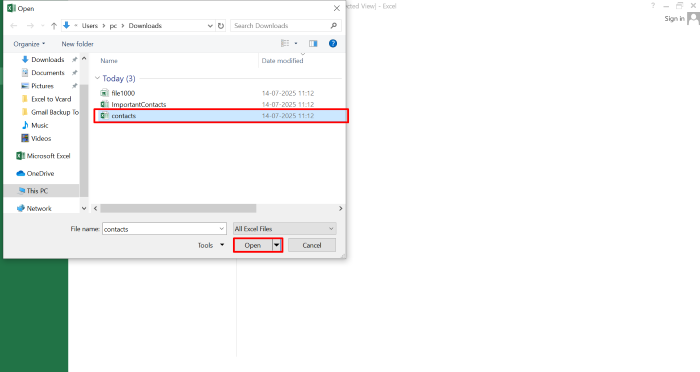
- First, open your Excel contact sheet (.XLS or .XLSX) using Microsoft Excel.
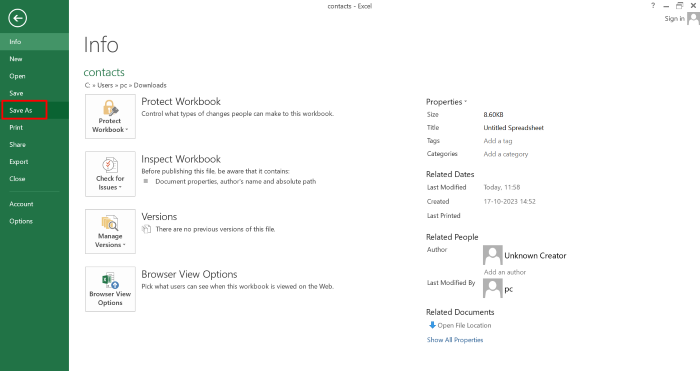
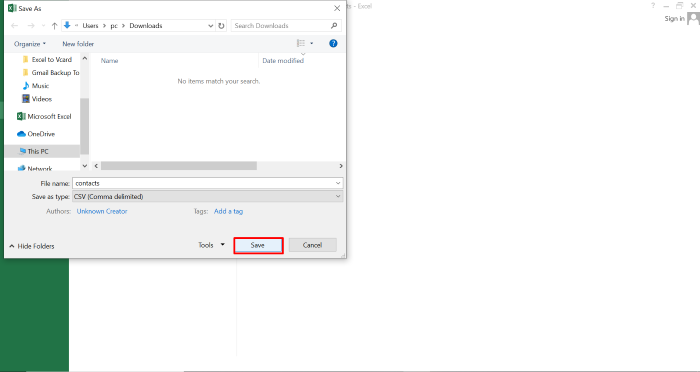
- Next, click on File >> Save As from the top menu.
- Select CSV (Comma-delimited) (*.csv) from the file type dropdown.
- After that, choose the destination folder and click the Save button.
- Now your Excel contacts will be saved in CSV format for the next step.

Step 2: Import CSV File into Google Contacts
- Go to Google Contacts and sign in with your Gmail account.
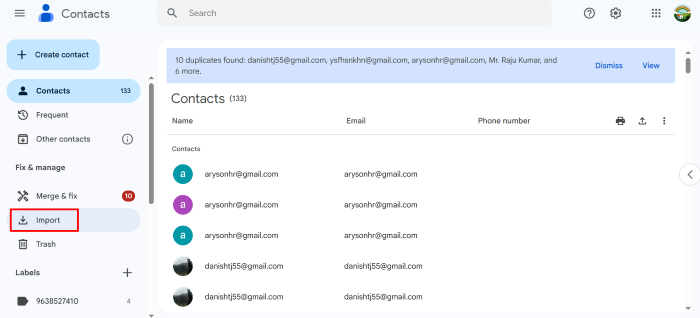
- Thereafter, click on the “Import” option from the left-hand menu.
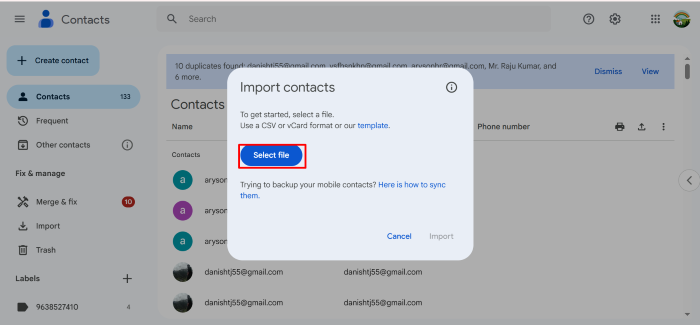
- Choose “Select File” and upload the CSV file you saved earlier.
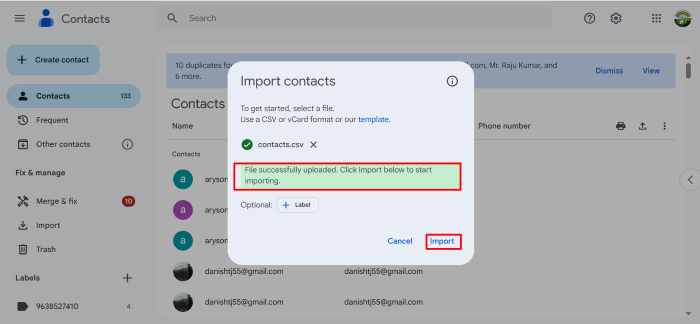
- Click the Import button to add those contacts to your Google account.
- Once done, you’ll see the new contacts listed under your Google Contacts.
Step 3: Export Google Contacts as vCard (VCF Format)
- Stay on Google Contacts.
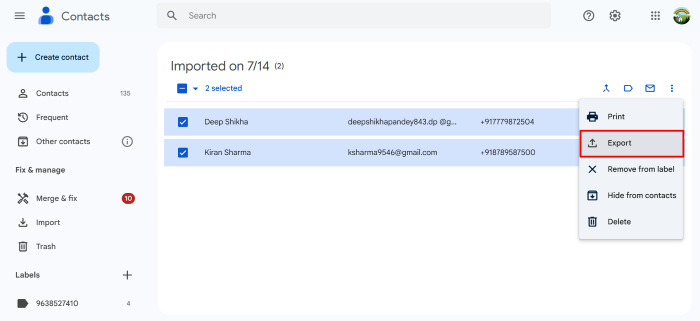
- Select the newly imported contacts or all the contacts you want to move.
- After that, click on the “Export” option from the left menu.
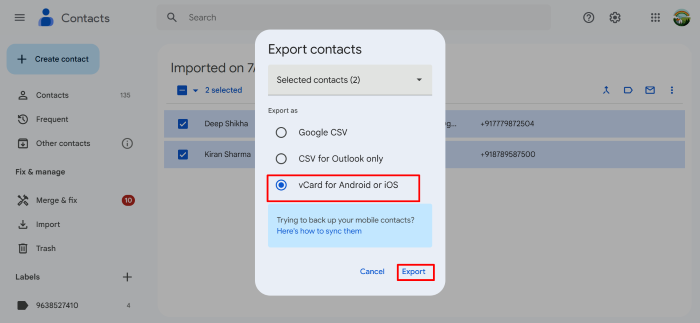
- In the pop-up, select vCard (for iOS Contacts) as the export format.
- Now, click Export and save the .vcf file to your computer.
Step 4: Import vCard Contacts into iCloud
- Open www.icloud.com and sign in using your Apple ID.
- Click on the Contacts icon from the iCloud dashboard.
- Tap the gear icon in the bottom-left corner and choose Import vCard.
- Browse your computer and select the .vcf file you exported from Google Contacts.
- iCloud will now upload and sync those contacts with your iCloud account.


Limitations Associated with the Manual Export
- The manual process is long and involves several steps.
- Moreover, incorrect field mapping can lead to data errors.
- In addition, it’s not ideal for large contact lists.
- Also, non-technical users may find it confusing.
- Switching between tools increases the risk of mistakes.
Note: This manual method works well for small to medium contact lists. However, for bulk contacts, complex data fields, or time-saving needs, using an automated Excel to vCard converter tool can make the task quicker and error-free.
Also read: import Contacts to Outlook from Excel Sheet
Method 02: Automated Method to Export Excel Contacts to iPhone
If you want to avoid the hassle of the manual export process, use Aryson Excel to vCard Converter to transfer contacts from Excel to iPhone. It directly converts Excel files (.XLS and .XLSX) into the vCard (.VCF) format, which is easily supported by iOS devices. This utility ensures proper field mapping. So all your important contact details, like names, phone numbers, email addresses, and more, are accurately transferred. It supports various vCard versions (2.1, 3.0, and 4.0). Also, it ensures compatibility with all iPhone models. With a clean interface and batch conversion capability, it is the best alternative for both individual users and professionals as a simple and reliable solution.
Follow these Steps to Export Excel Contacts to iPhone:
- Install and open the Aryson Excel to vCard Converter on your Windows system.
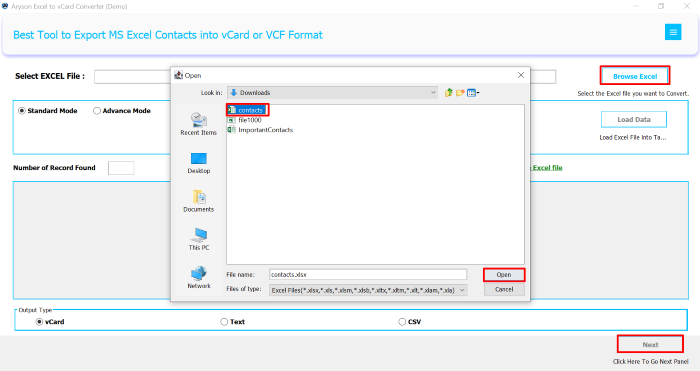
- Click on the Browse Excel button to select your Excel file (.XLS or .XLSX)>>Open.
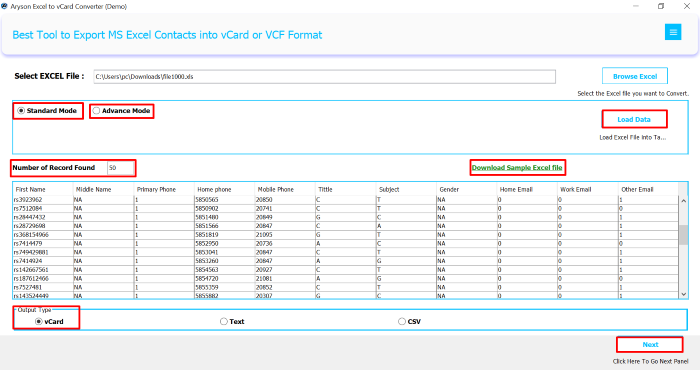
- Now, you can preview the contact details displayed from your Excel file before proceeding.
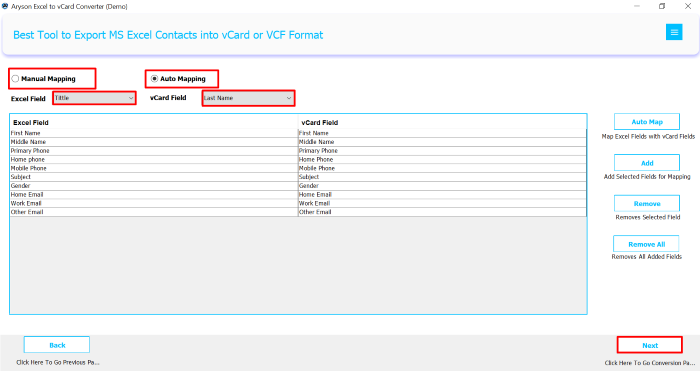
- Use the Field Mapping feature to align Excel columns with vCard fields like Name, Email, Phone, etc.
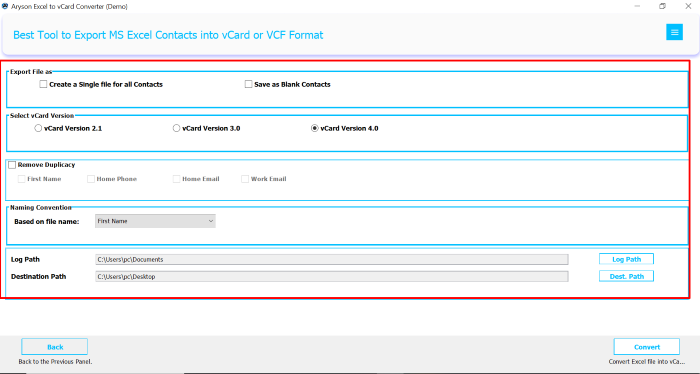
- Choose the vCard version (2.1, 3.0, or 4.0) along with the destination path based on your iPhone’s compatibility.
- At last, click on the Convert button to convert Excel to vCard for iPhone.

Once completed, go to iCloud and import vCard Contacts to iCloud. Then, all your Excel contacts will appear in your iPhone’s Contacts app.
Conclusion
In this blog, we’ve explained the most effective way to export Excel Contacts to iPhone/iPad.
The manual method offers a free way to handle the transfer, but it is complex for users unfamiliar with multiple file conversions. In contrast, using Aryson Free Excel to vCard converter simplifies the entire process, saves time, and ensures accurate contact transfer. Additionally, it enables importing 50 Excel contacts to an iPhone at no additional cost.
Frequently Asked Questions:-
Q1. How to transfer multiple contacts to iPhone?
Ans: To transfer multiple contacts to your iPhone, use Aryson Excel to vCard Converter. Follow the given steps:
✅ Install the Aryson Excel to vCard Converter on your Windows system.
✅ After that, click Browse Excel to select your Excel file.
✅ Now, preview the contact list and proceed.
✅ Select the vCard version (2.1, 3.0, or 4.0) for iPhone compatibility.
✅ Map the Excel columns to vCard fields like Name, Email, etc.
✅ Lastly, choose the destination folder and click Convert.
✅ Now, import the vCard (.vcf) into iCloud under Contacts.
Q2. What is the easiest way to export Excel contacts to iPhone?
Ans: The easiest way is to use a tool like Aryson Excel to vCard Converter, which directly creates a vCard file ready for iPhone or iCloud import.
Q3. Will my contact data remain intact during the conversion?
Ans: Yes, if you use a reliable converter tool, your contact details, like names, numbers, emails, and addresses, will be preserved accurately.
About The Author:

Rohan Wiese is a Technical Writer at Aryson Technologies. He is an expert Email Forensic, Cloud Computing, and a passionate nerd with over 10 years of experience in technical content writing. He writes about Cloud Migration, Database Recovery, Email Backup, Windows, Mac, and Tech.
Related Post