Detailed Guide of Aryson AOL Backup Tool to Backup or Migrate AOL mailbox Emails
-
Table of Content
- Software Working Process
- Activation Guide
- Installation & Uninstallation
- User Interface
Software Working Process
Follow Steps to Backup the AOL User Emails
Application Pre-Requisites
- Turn On Two-Step Verification, Generate Third Party App Password & Use App Password to login your account on the Aryson AOL Backup Tool - Read More
Software Working Process
Follow the Steps to back up or migrate AOL mailbox emails, including attachments files:
Step 1: Start Aryson AOL Mail Backup Tool as an administrator on your computer.
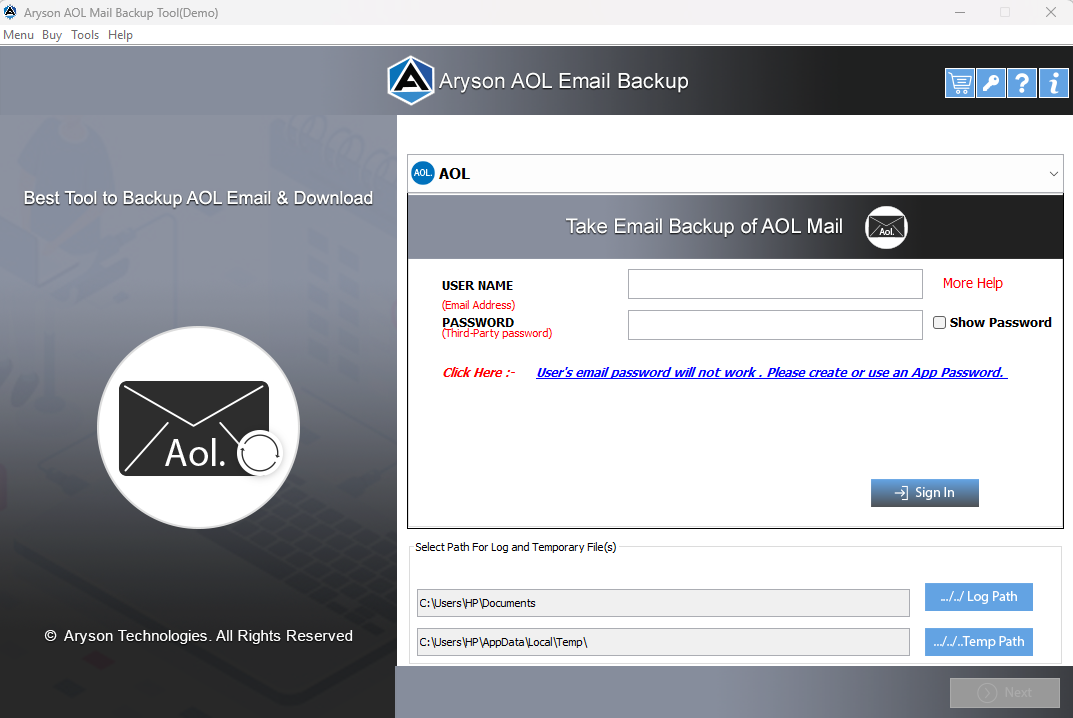
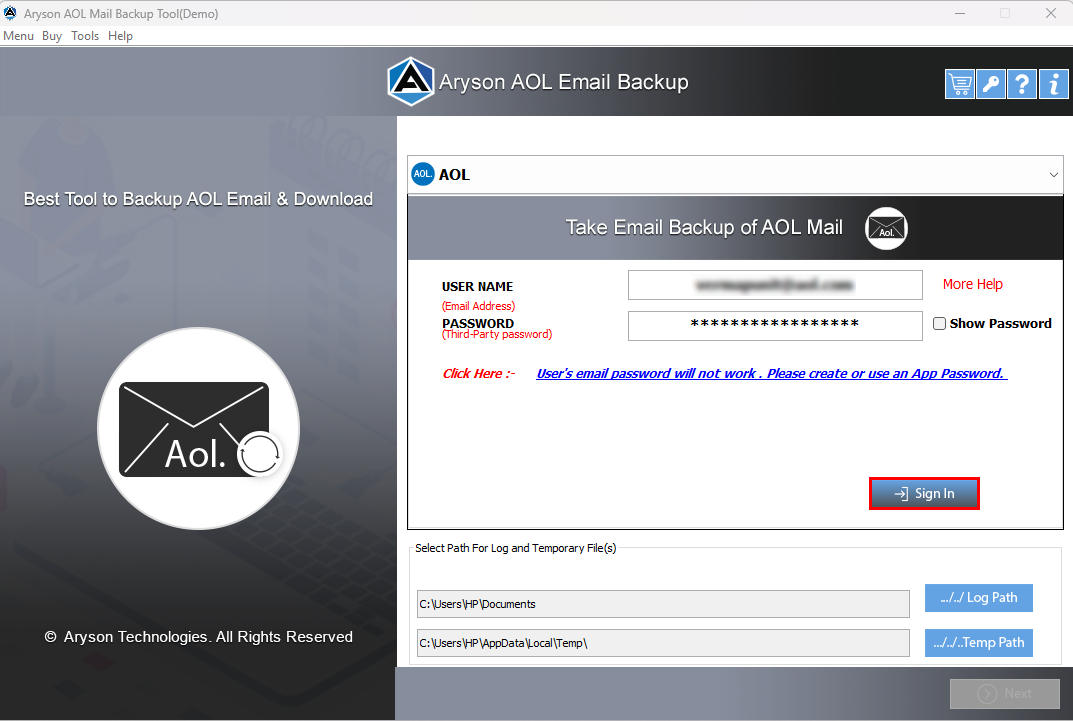
Step 2: Sign In using an AOL ID and a third-party app password.
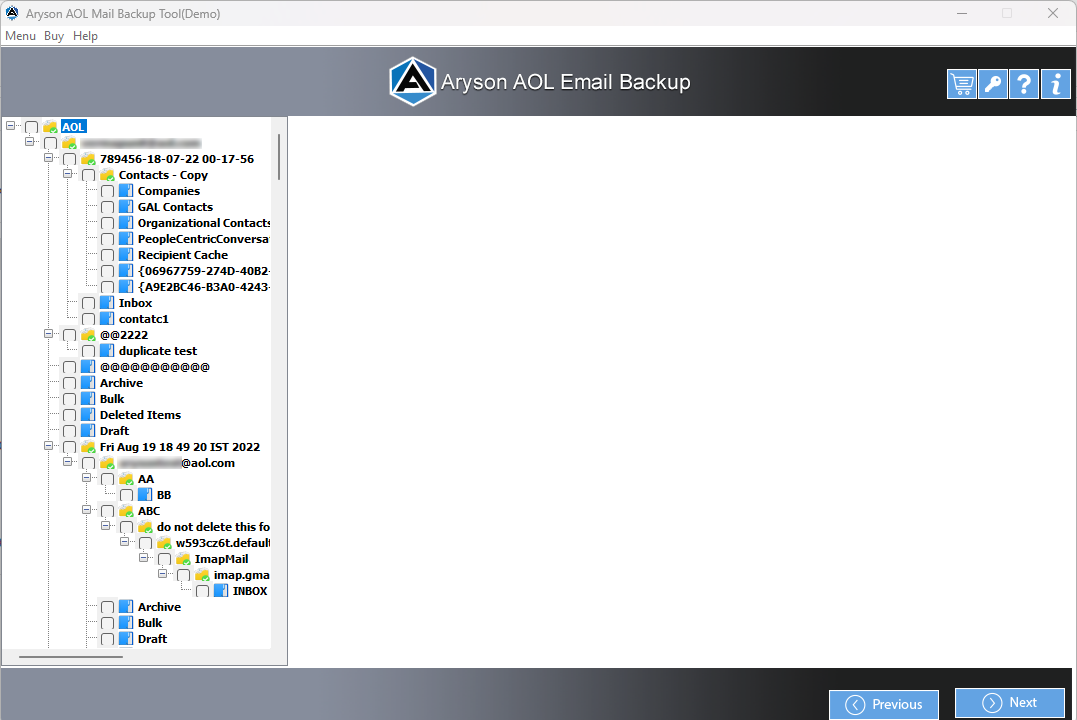
Step 3: Here, You will find a tree structure containing all the entered AOL Id folders, files, and subfolders.
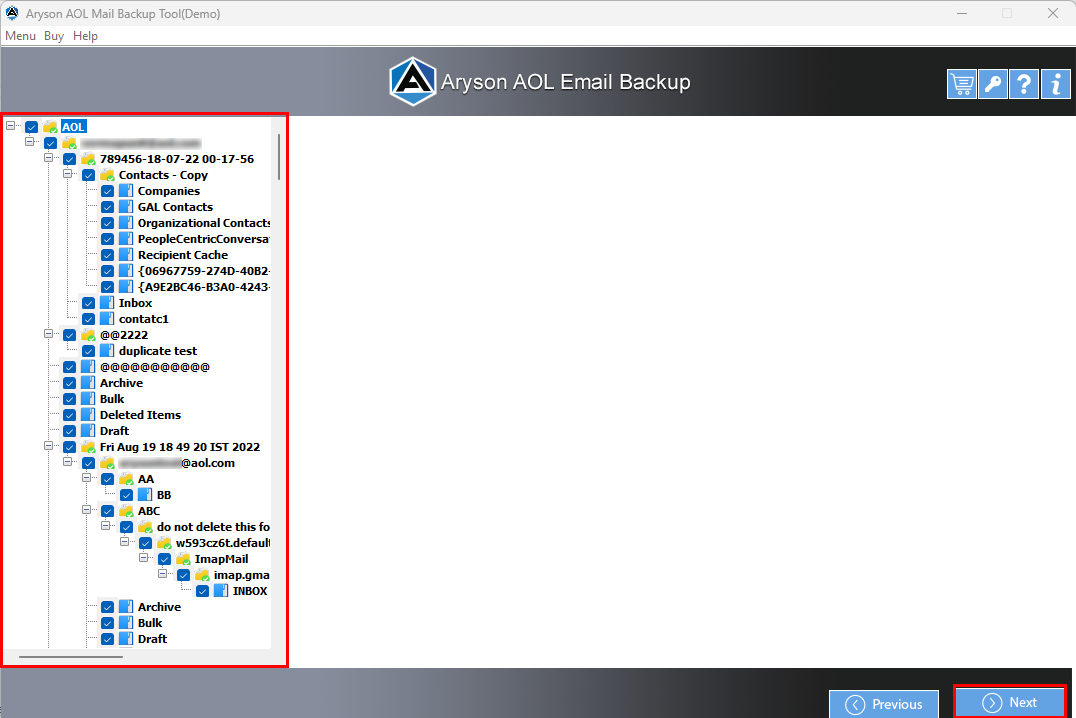
Step 4: Now, Check for folders from the tree to make a backup. Click on Next to continue the process.
Step 5: Choose a file format from the Saves/Backup/Migrate As drop-down list.
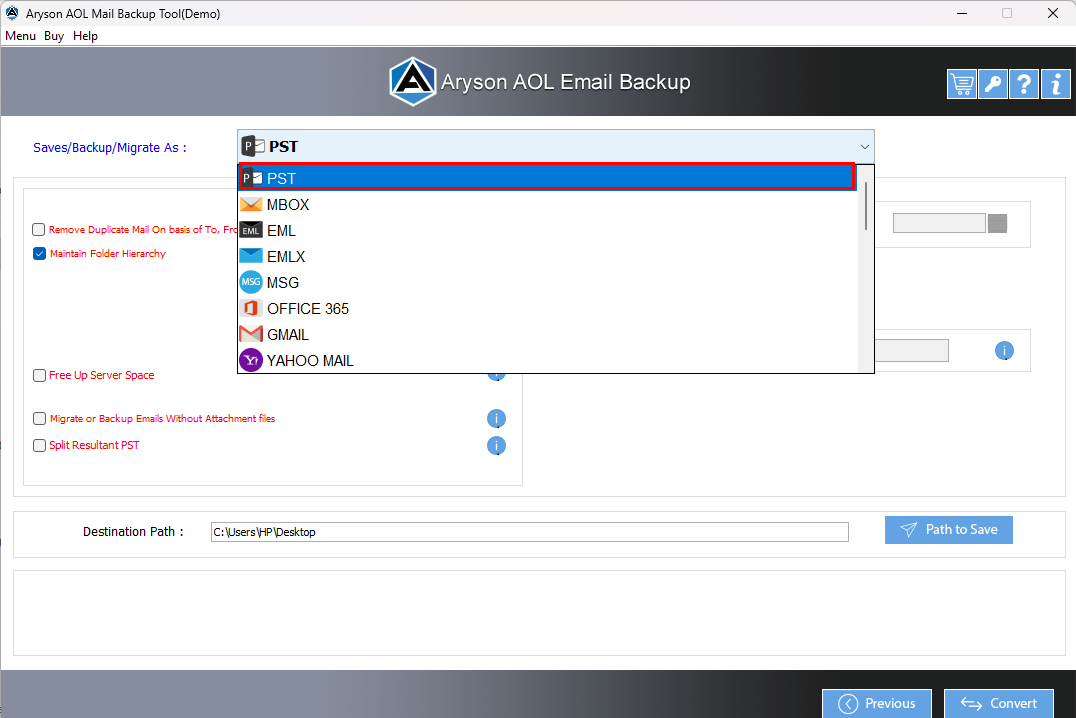
Step 6: The selected File Format is PST.
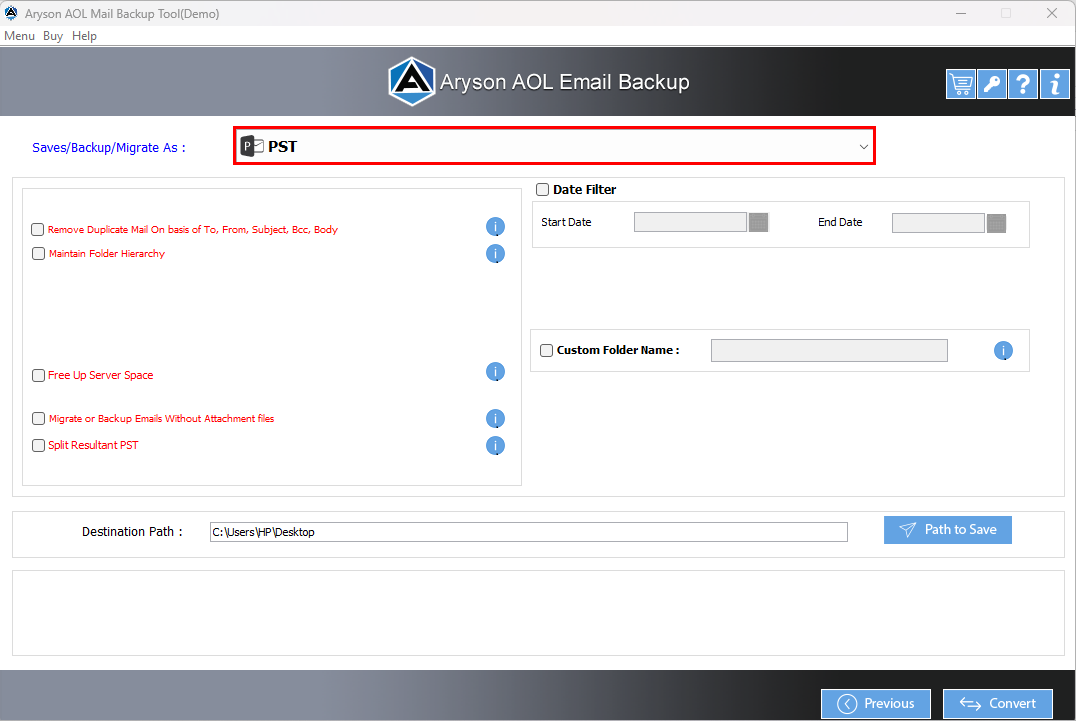
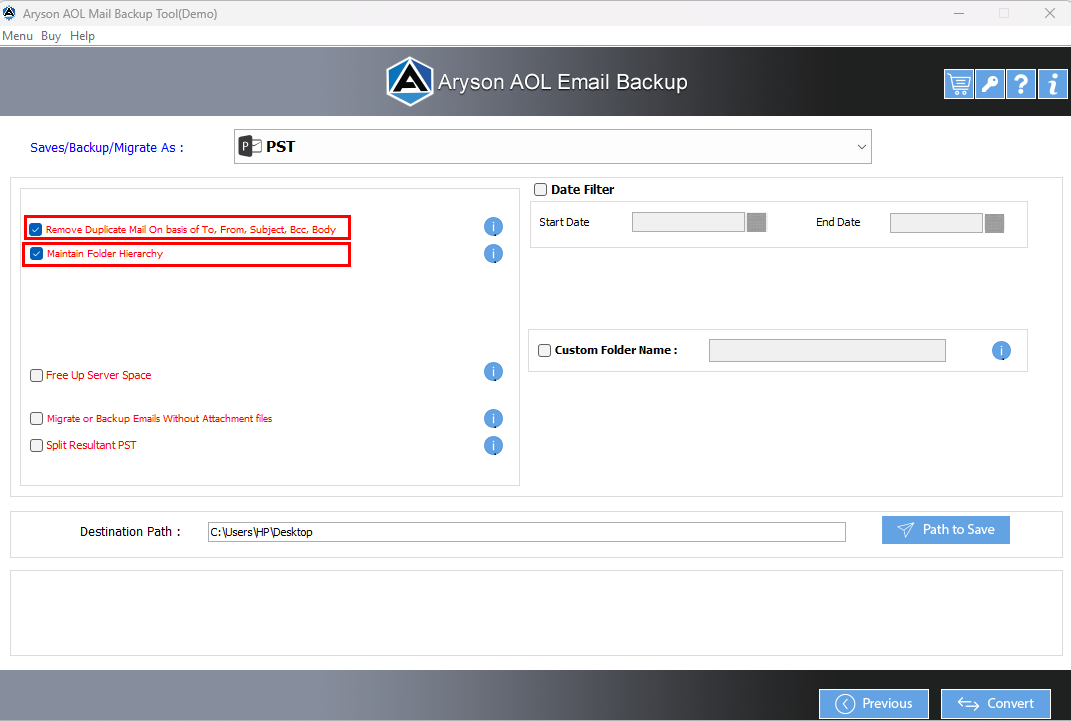
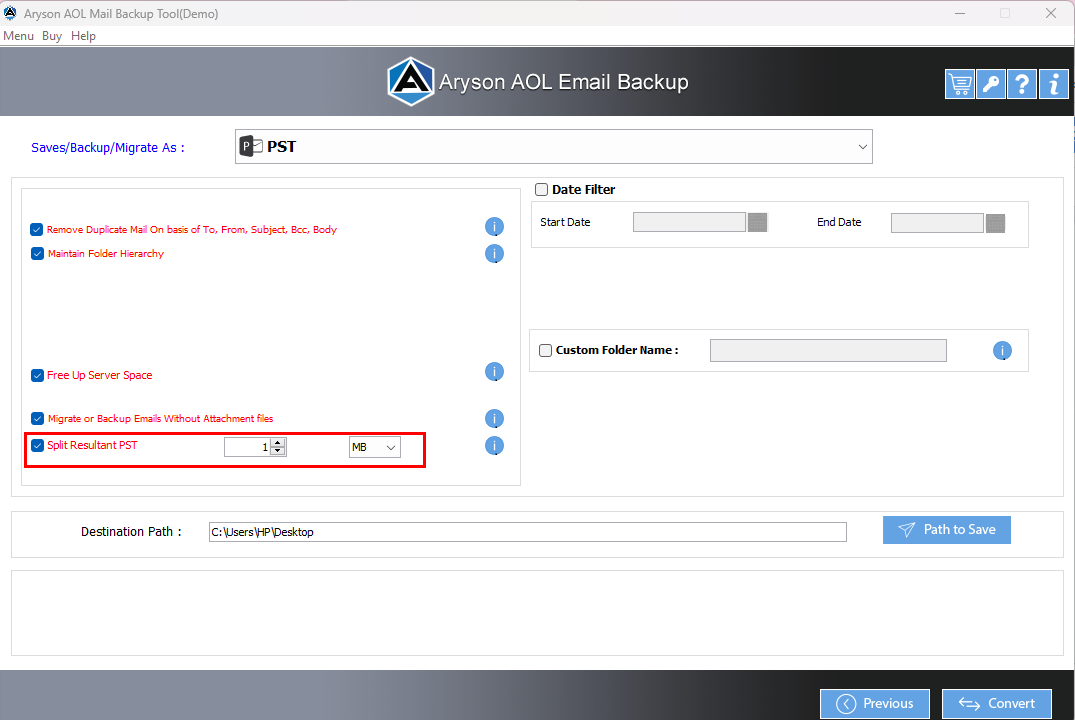
Step 7: Check these features, if needed:
- Remove Duplicate Mail:- It will remove duplicate emails from the selected AOL folder.
- Maintain Folder Hierarchy:- Tick this option to maintain the folder structure in its previous form.
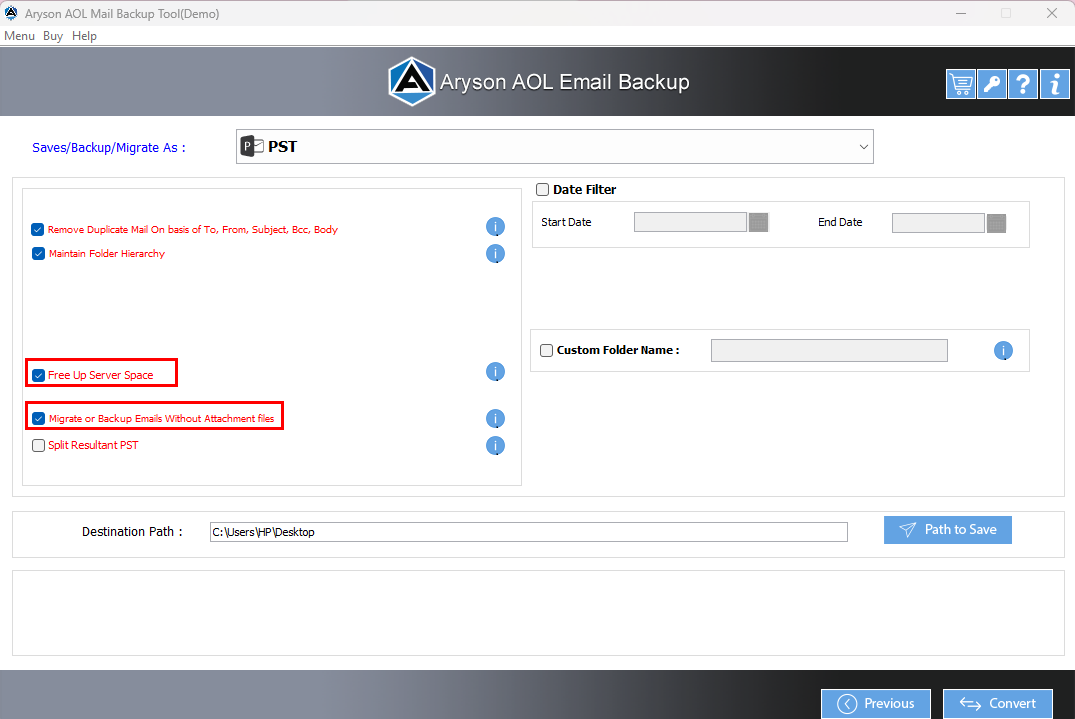
Step 8: Choose these options for better selection:
- Free up Server Space:- Apply for this feature to free the storage space from the AOL server.
- Migrate or Backup Without Attachments files:- Go for this option to backup emails without their contained attachment files.
Step 9: Split Resultant PST:- It will enable you to break the resultant files in MB or GB.
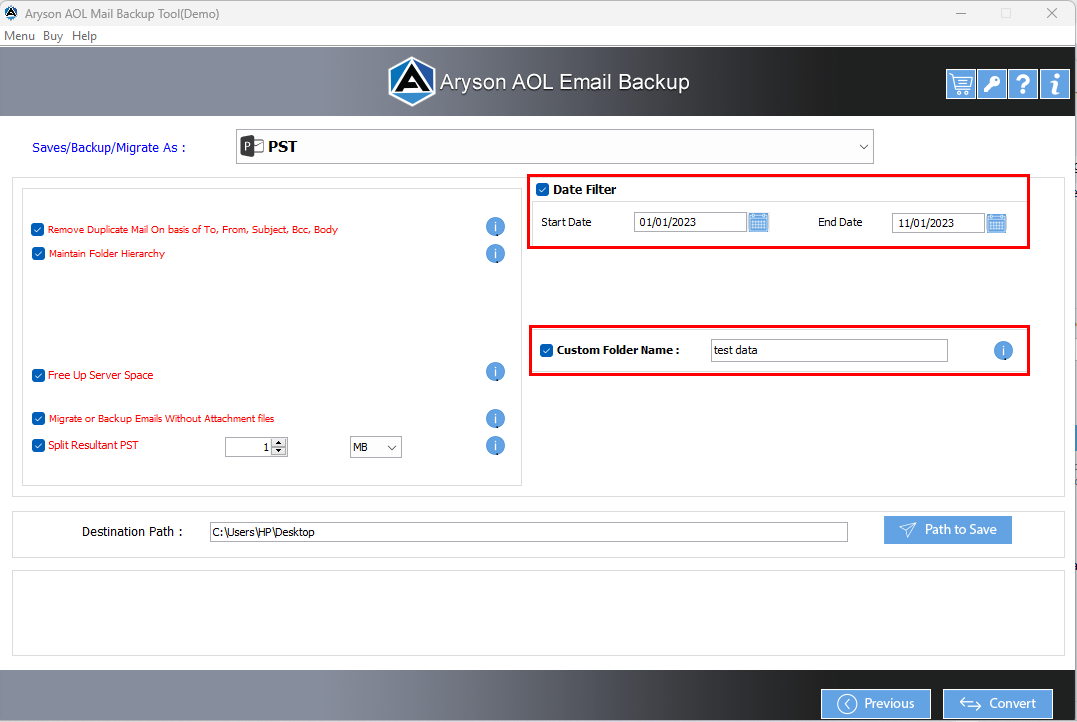
Step 10: Check for these:
- Date Filter:- To backup the emails between the particular dates.
- Custom Folder Name:- Check this option to assign the name of the output folder.
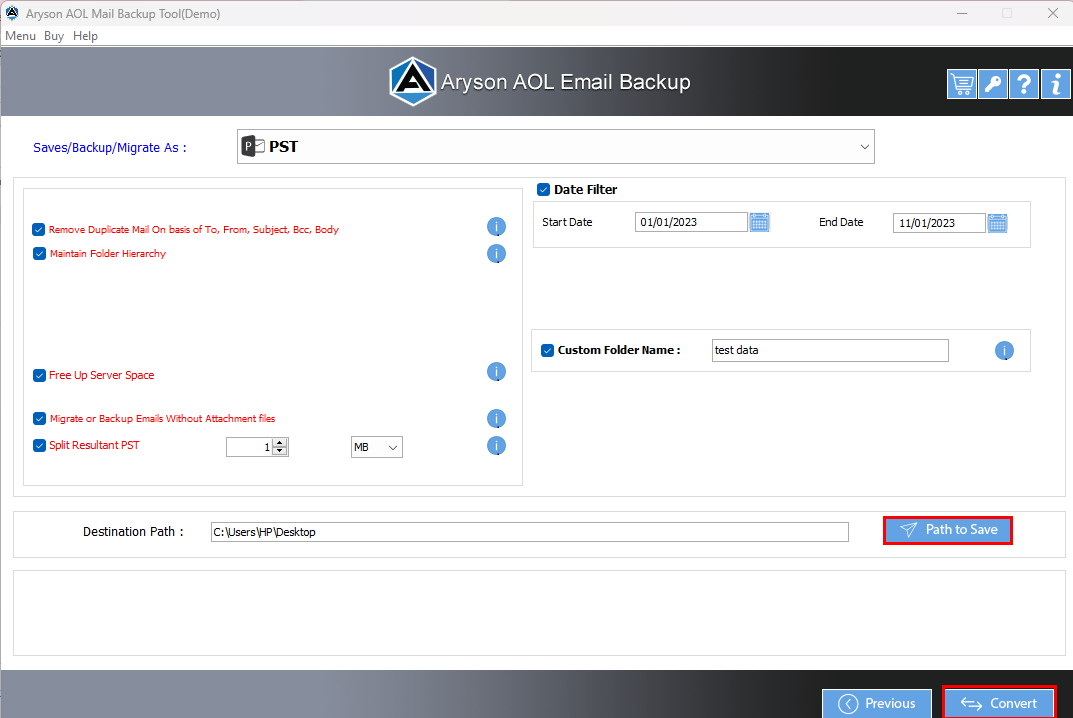
Step 11: Click on these buttons:
- Path To Save:- Click on this to select the saving directory for the resultant folder.
- Convert:- Click this Convert button to start AOL email backup into the PST file.
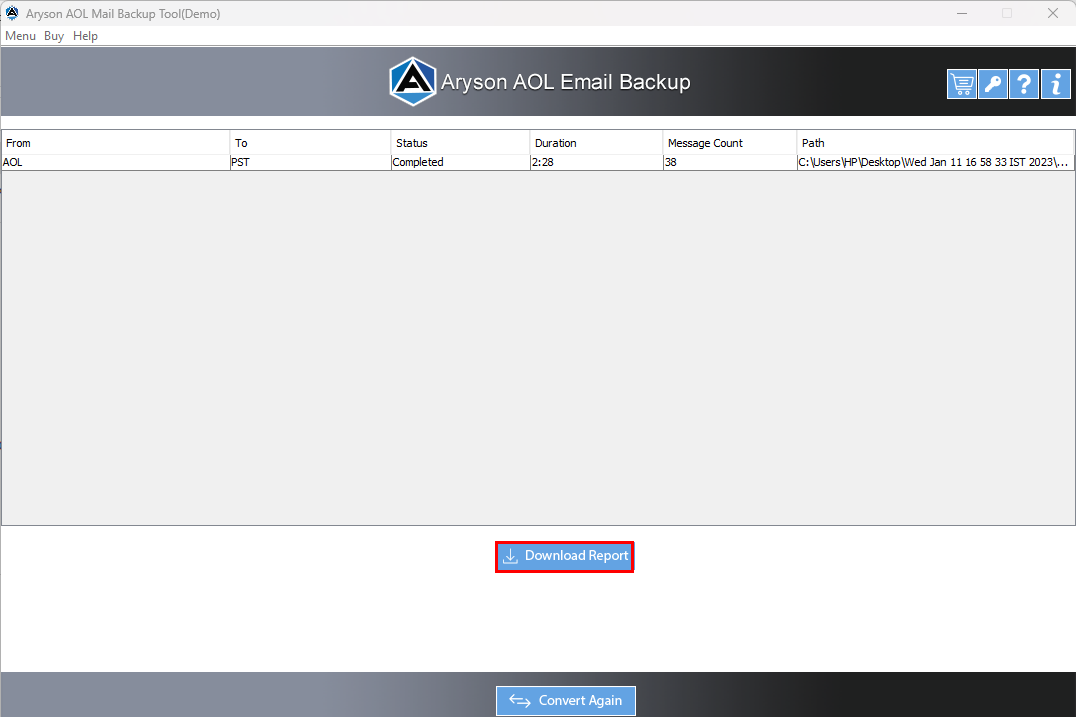
Step 12: You have finally downloaded the selected AOL mailbox folder in a PST file format. Save the report using the Download Report button.
Step 5: Choose an email client from the Saves/Backup/Migrate As option drop-down list. (Selected Email Client is Gmail).
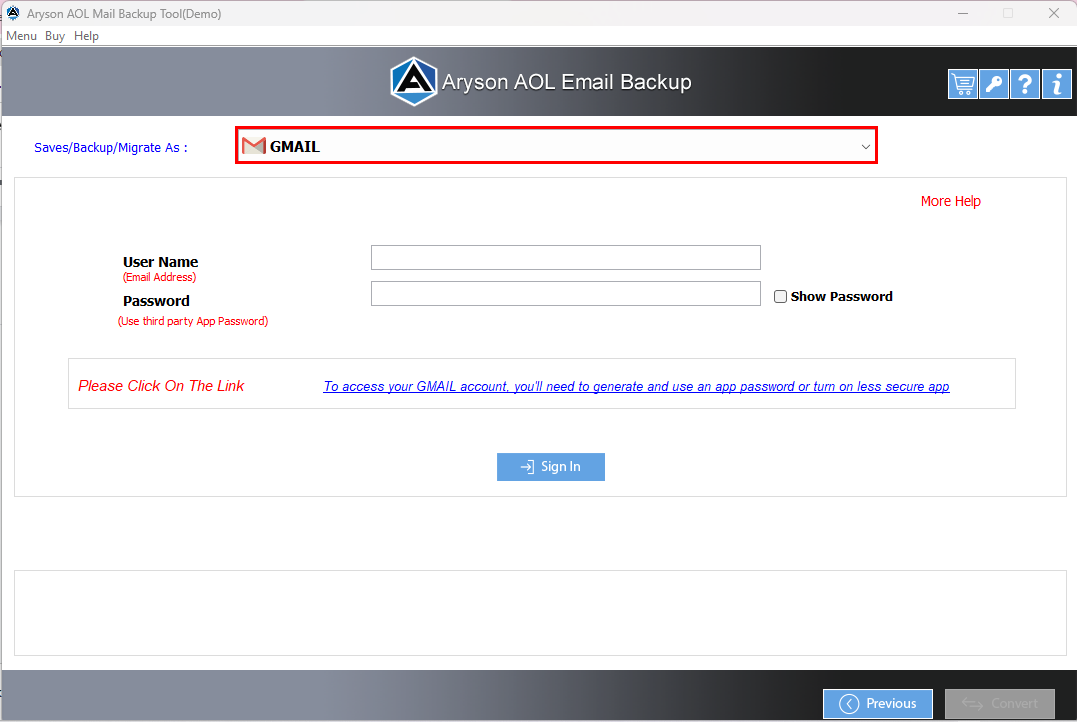
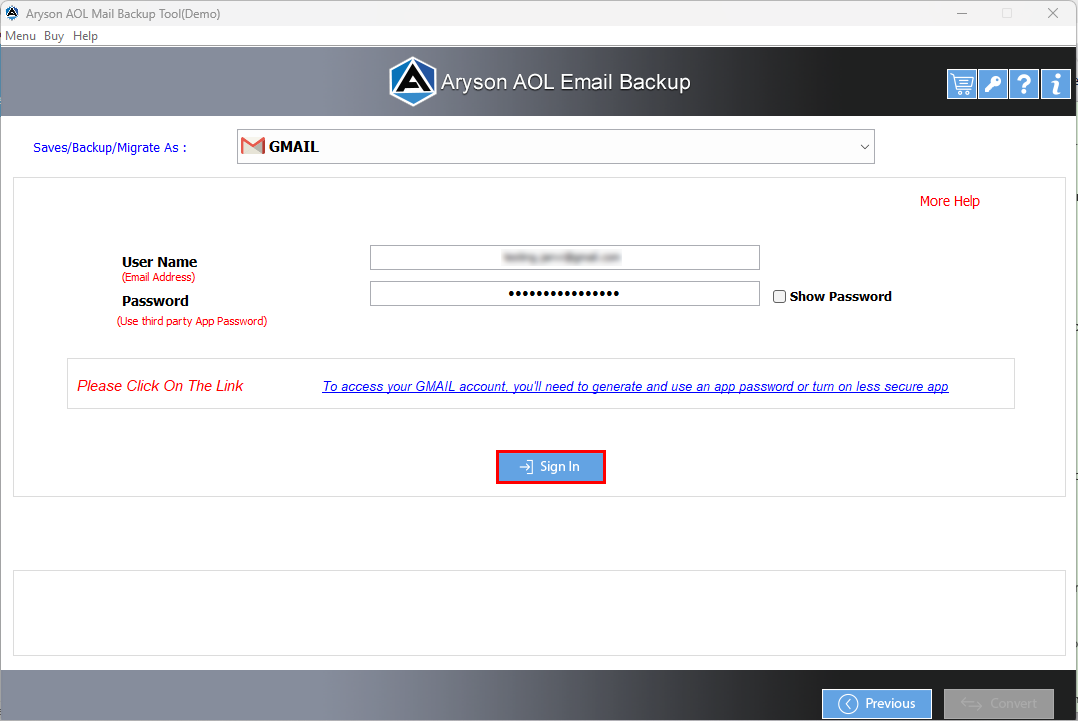
Step 6: Sign In with your Gmail ID and third-party app password.
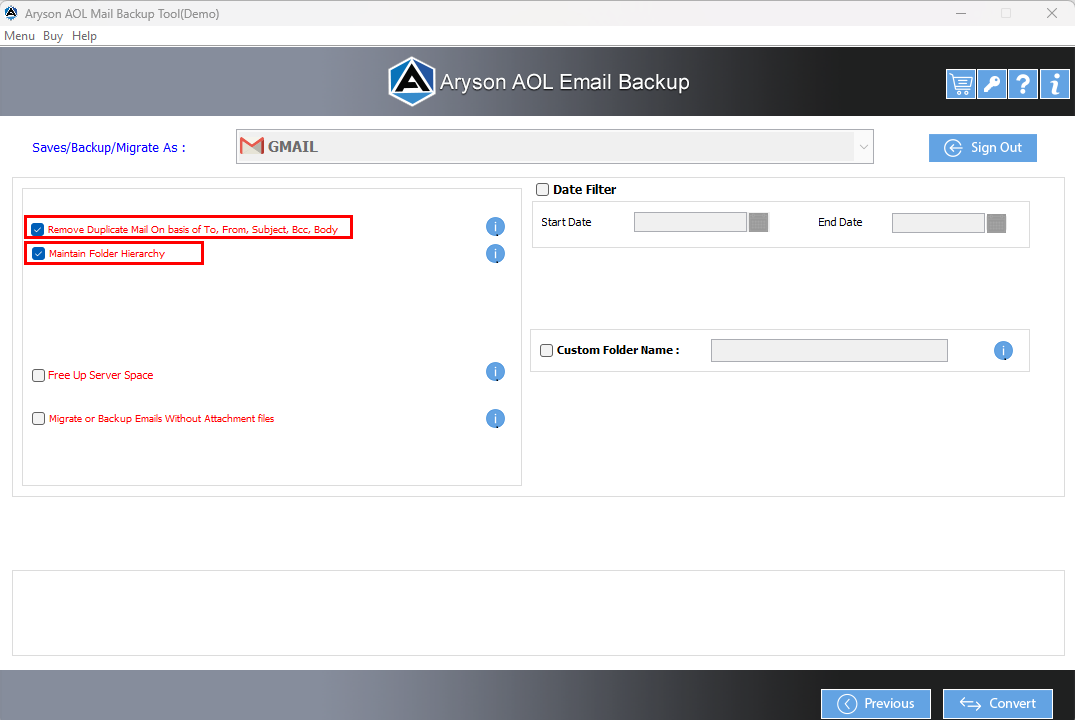
Step 7: Go for these features:
- Remove Duplicate Mail: Click this option to delete similar emails.
- Maintain Folder Hierarchy: Check this to maintain the folder structure of backup folders.
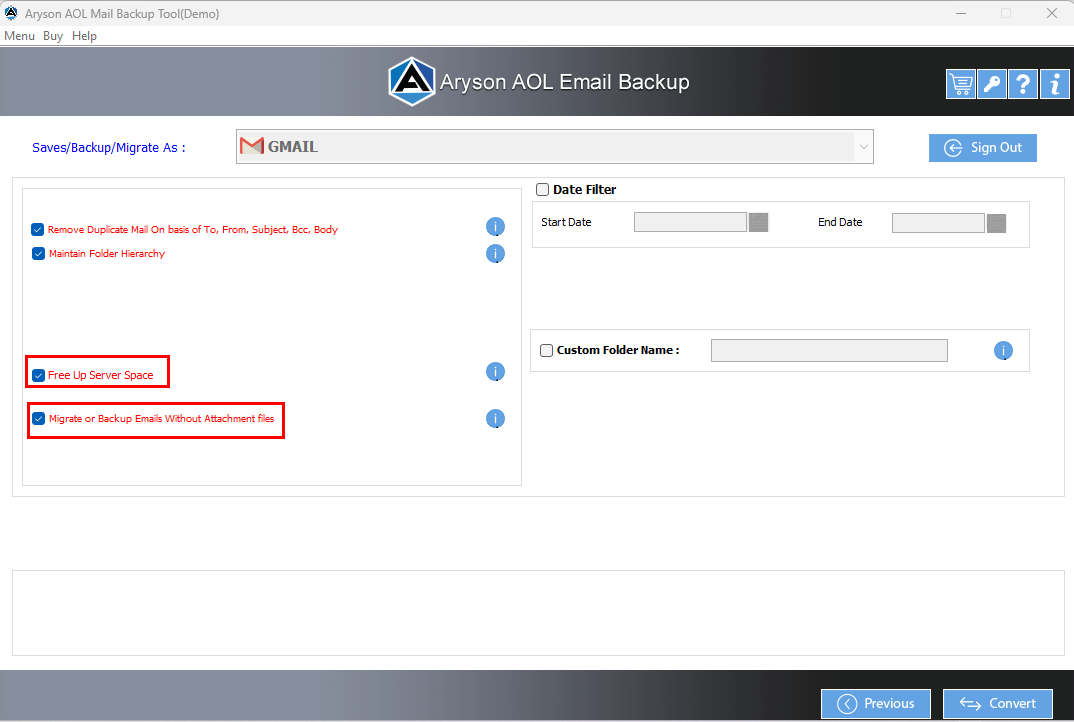
Step 8: You can also apply for the following:
- Free up Server Space: Tick this option to free up the AOL Mail server storage.
- Migrate or Backup emails Without Attachments files: You can migrate AOL emails without attachments by checking on this.
Step 9: Go for these features, if necessary:
- Mail Filter:- To separate the AOL emails into individual date ranges.
- Custom Folder Name:- You can also define the resultant folder name using this option.
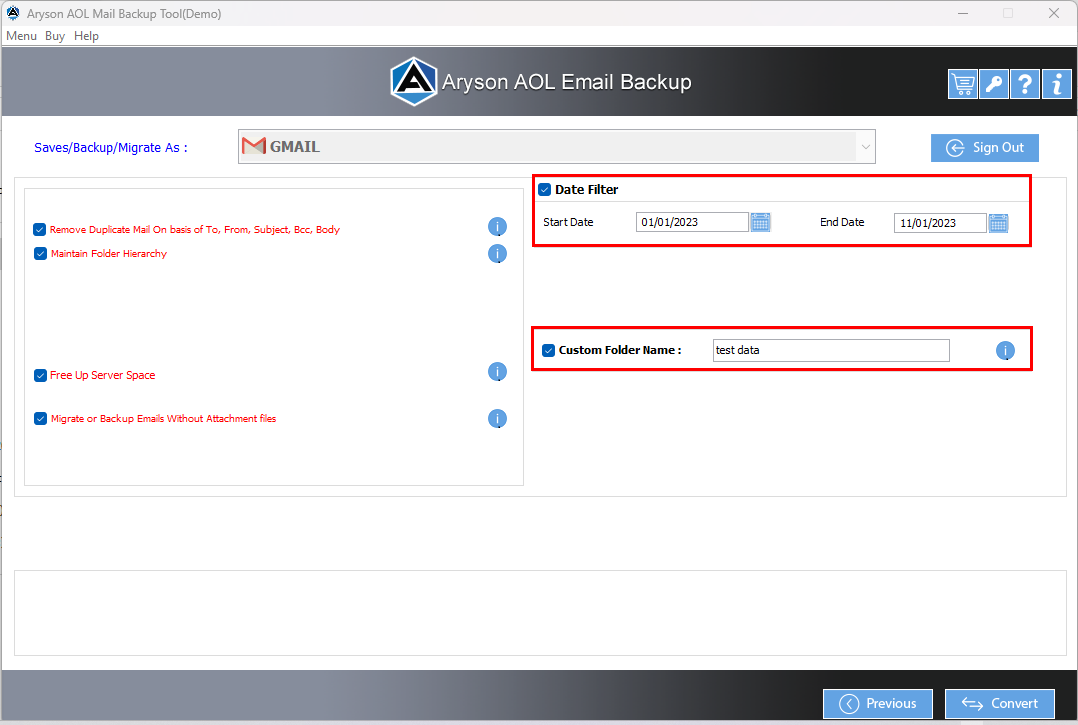
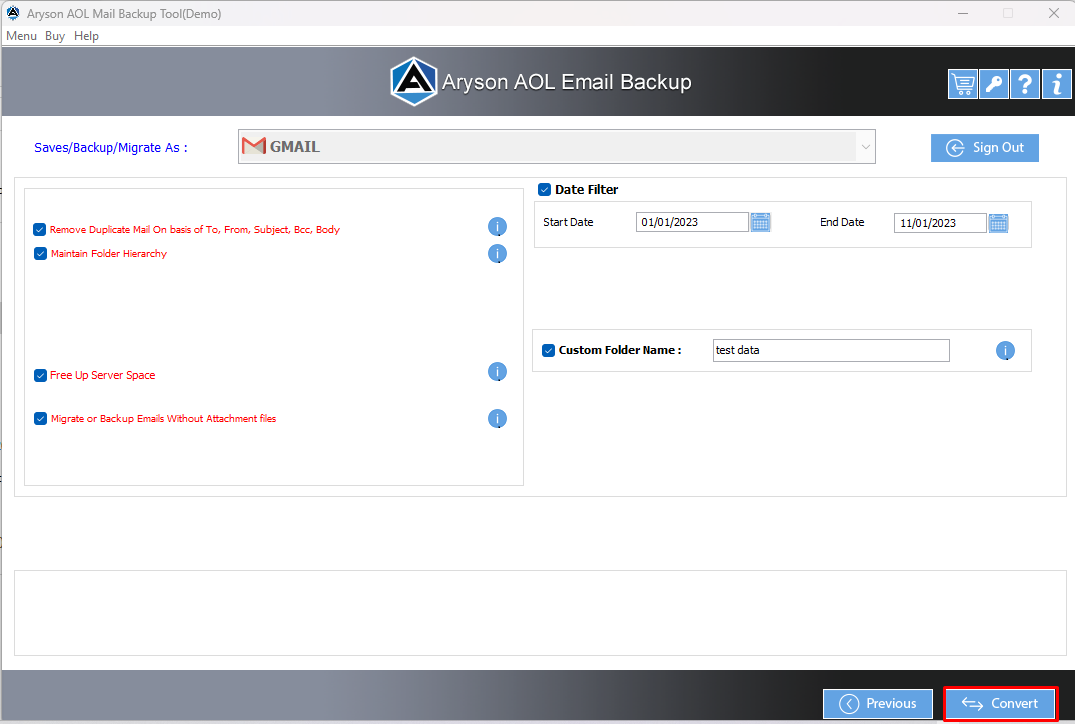
Step 10: Click on the Convert button to migrate AOL mailbox emails to Gmail.
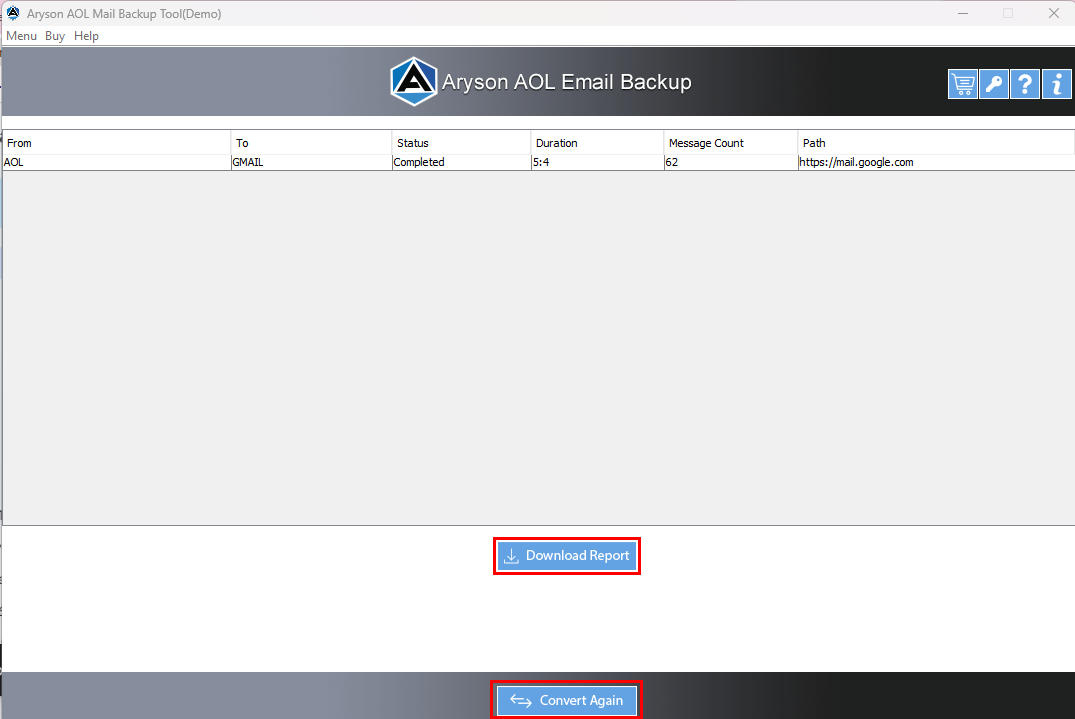
Step 11: Saves the report of the AOL email migration using the Download Report button.
Activation Guide
Activate the Software
Installation & Uninstallation
Installation & Uninstallation of Software
User Interface
User Interface
After downloading the Aryson AOL Backup Tool, you will find the welcome screen as played below.