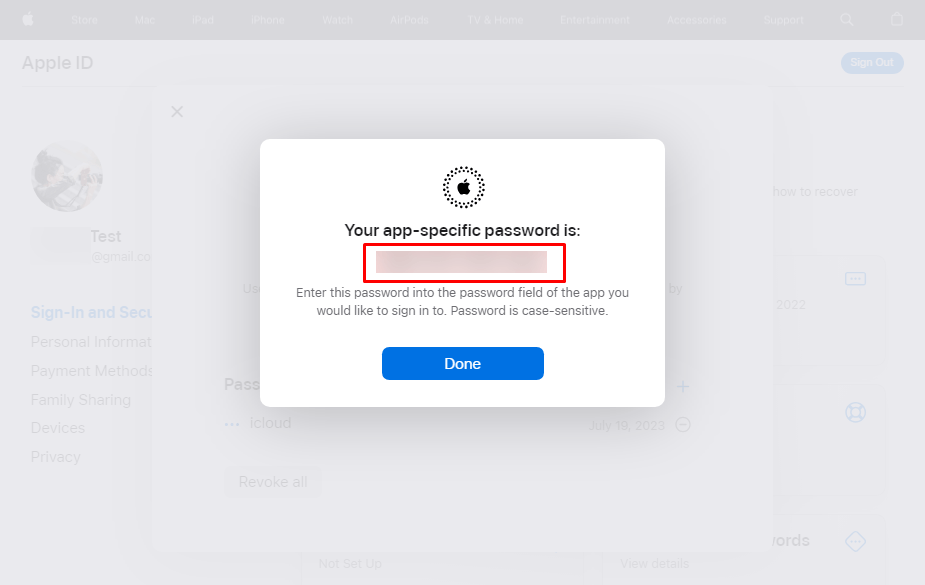
How to Generate App-Specific Password?
App-specific passwords serve as secure login credentials for your Apple ID, granting you access to your iCloud data through third-party applications. These passwords are particularly useful when using nonApple services like email, contacts, and calendars. By employing app-specific passwords, you can maintain a robust level of security and safeguard your Apple ID password, ensuring that it is not stored or collected by the third-party apps you utilize. These measures guarantee the protection of your sensitive information stored in iCloud while interacting with external applications.
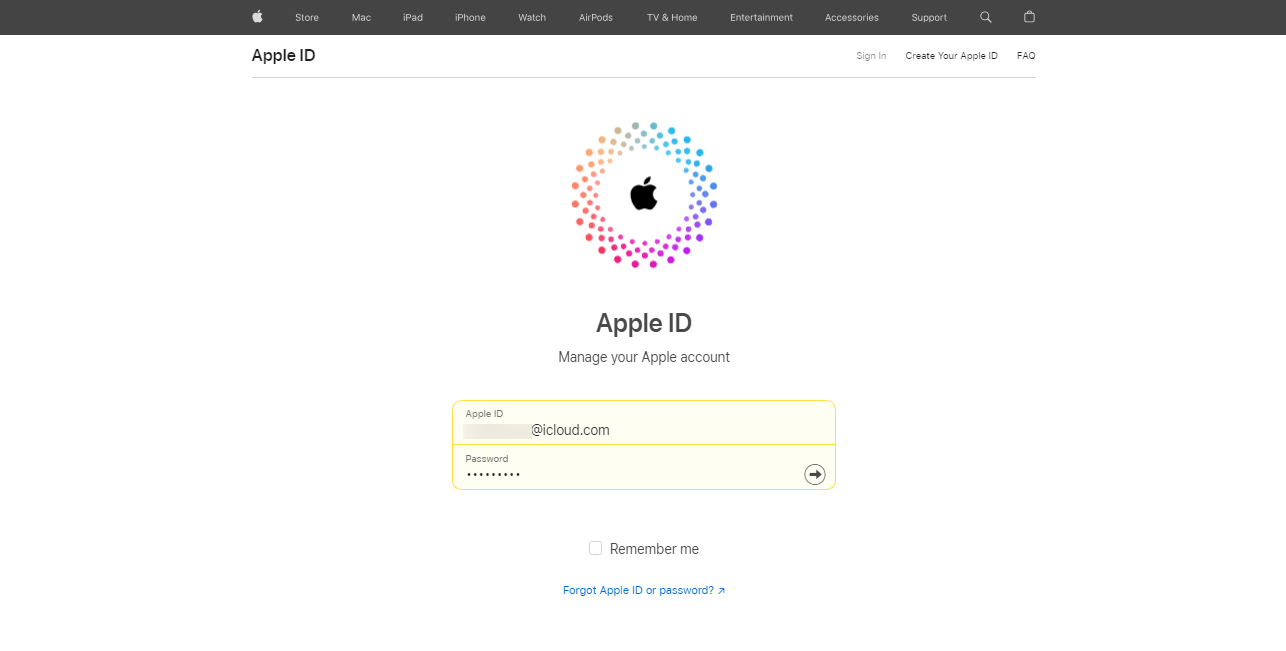
Step 1: Log in to your Apple ID account page.
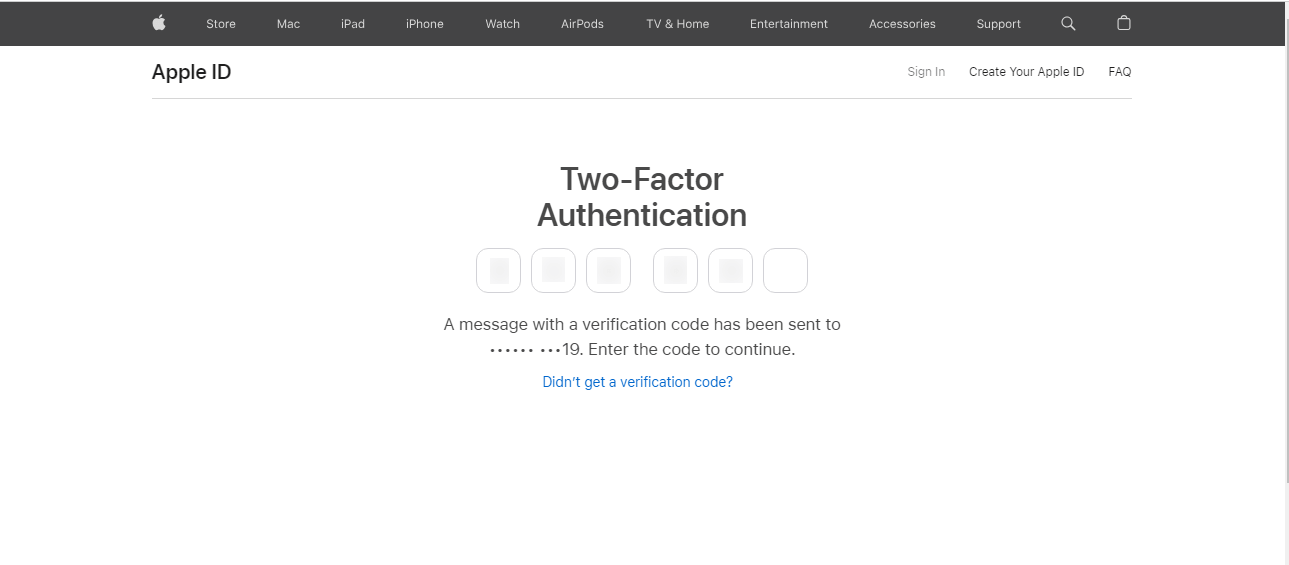
Step 2: Allow access to your Apple device and then enter OTP for verification.
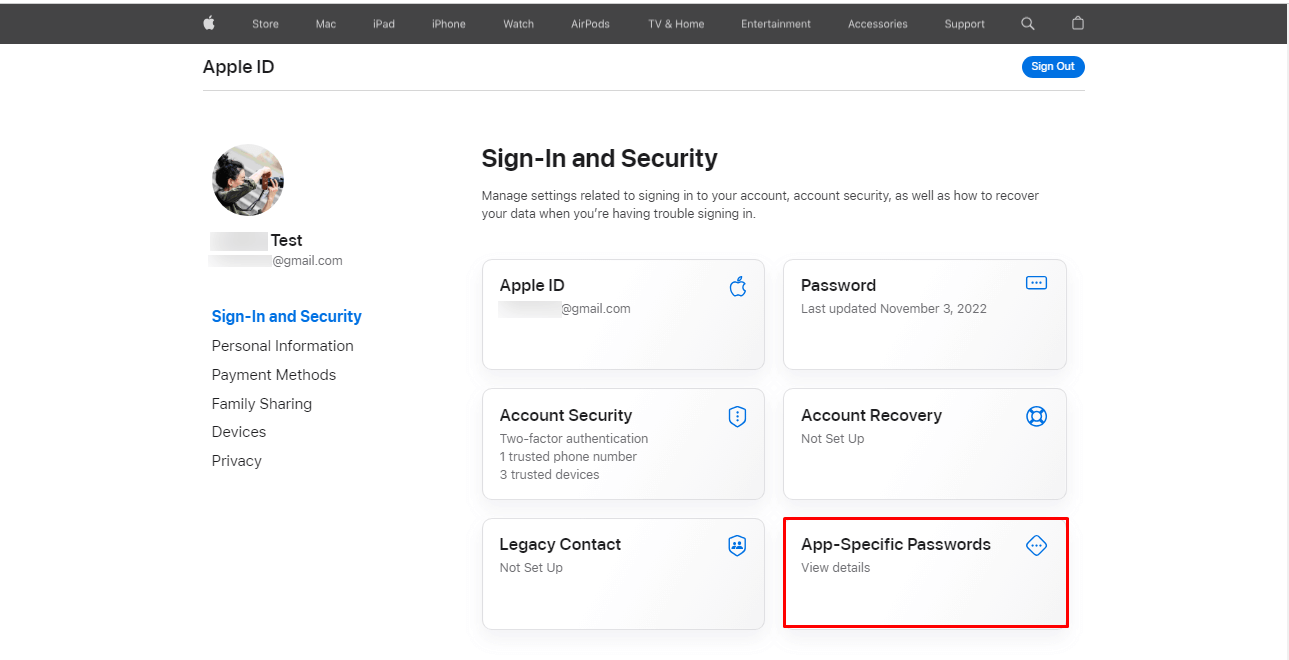
Step 3:Then Select App-Specific Passwords for the password. For this option turn on Apple two-factor authentication in the Account Security Section, if it is not on already.
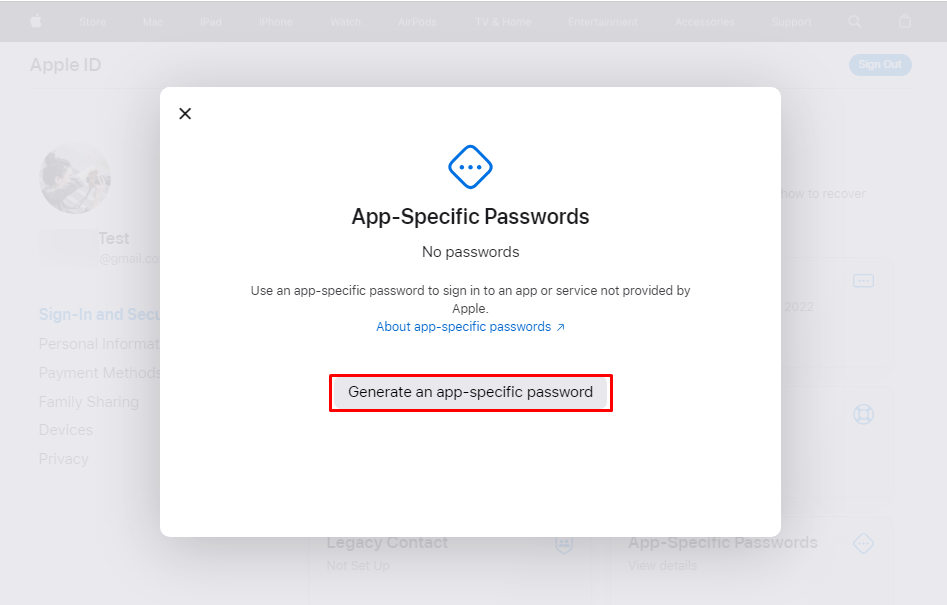
Step 4: Now click on Generate An AppSpecific Password.
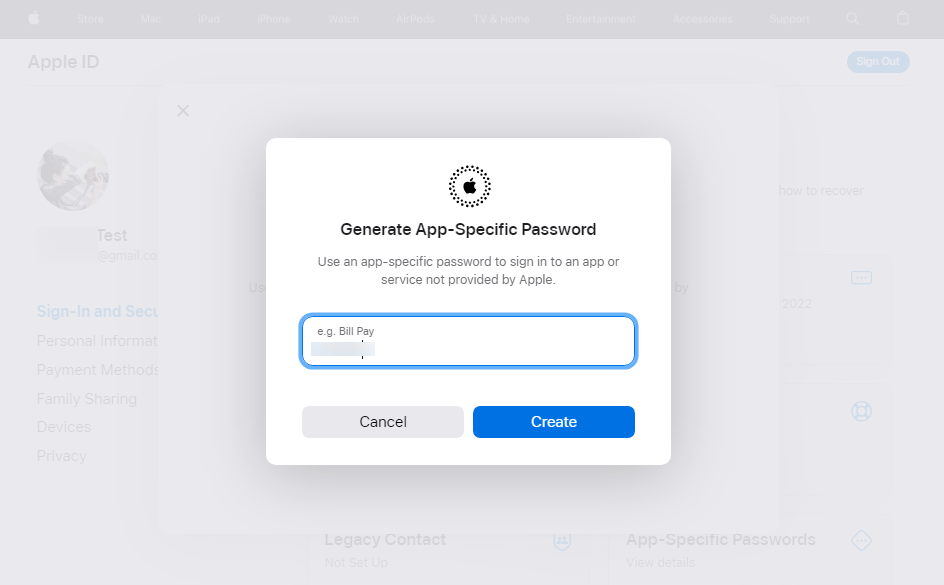
Step 5: Enter a label for the password. Be sure the name relates to the app for which you are generating the password, like "EmailBackupWizard" or "iCloud".
Step 6: Then click on Create.
Step 7: After you generate your app-specific password, enter or copy-paste it into the password field of the app as you would normally.