In case you encounter difficulties while authenticating your Gmail or Google Workspace (G Suite) account, please ensure that the following settings are enabled.
How to Enable IMAP Setting in Gmail and G Suite?
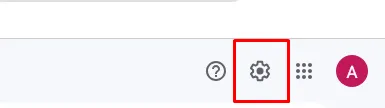
Step 1: Log in to your Gmail account and click the gear icon designated to the right side of the window.
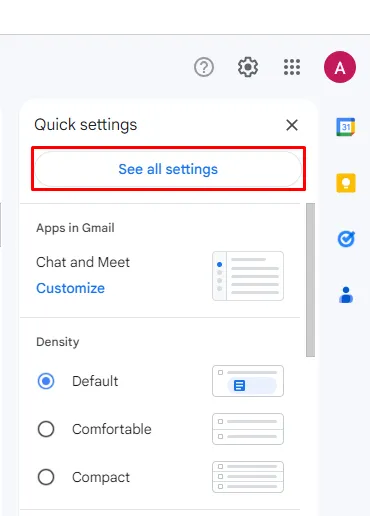
Step 2: Go to the See all settings from the menu.
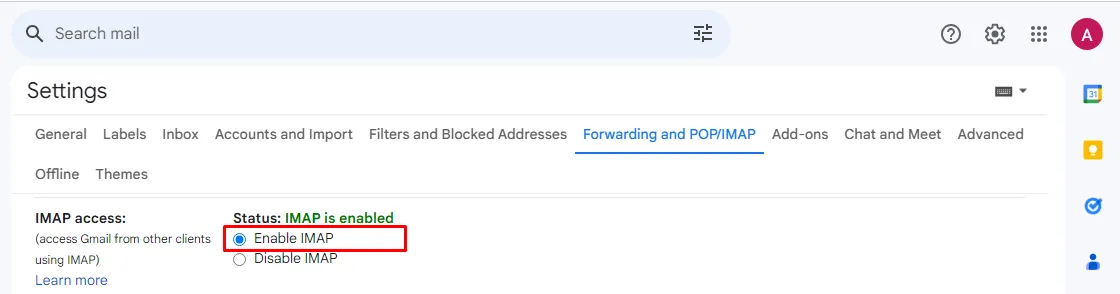
Step 3:Click on the Forwarding and POP/IMAP tab.

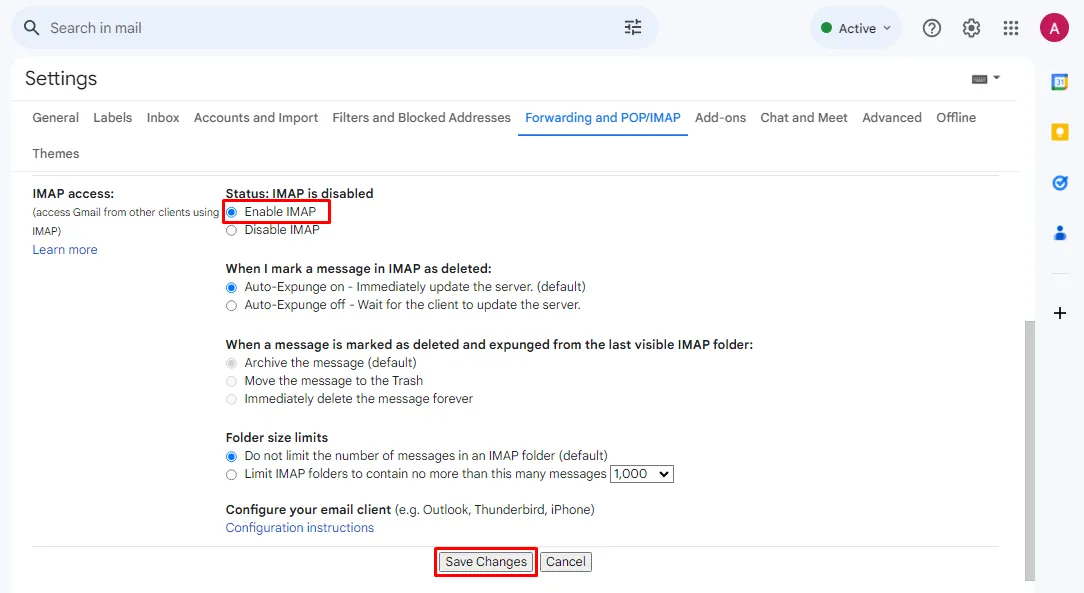
Step 4: Move on to the IMAP access setting.
Step 5: Enable IMAP if it is disabled on your Gmail or G Suite account. then click on Save Changes.
How to Create an App Password?
Follow the steps to Generate a Google App Password. App Passwords can only be used with accounts that have 2-Step Verification turned on.
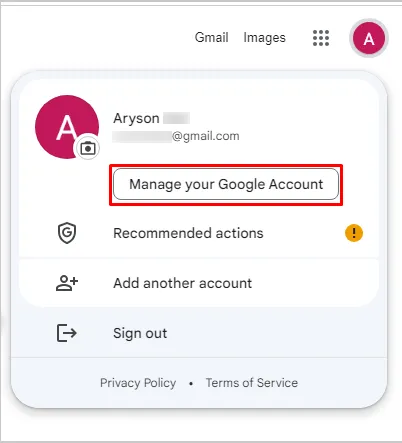
Step 1: Open your Google My Account and go to Manage your Google Account.
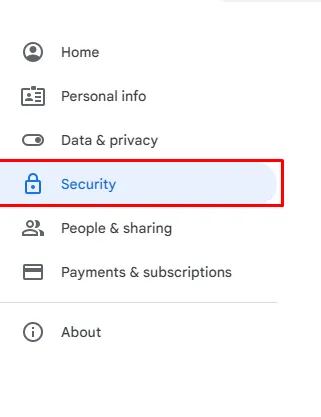
Step 2:Select Security.
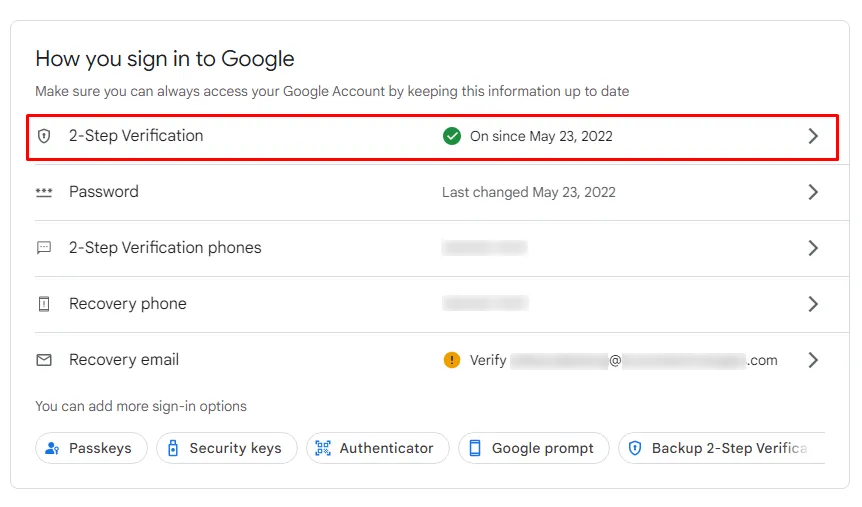
Step 3:Under "How you sign in to Google," click on 2-Step Verification and proceed ahead.
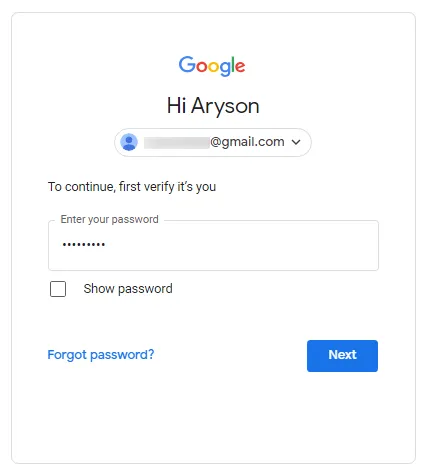
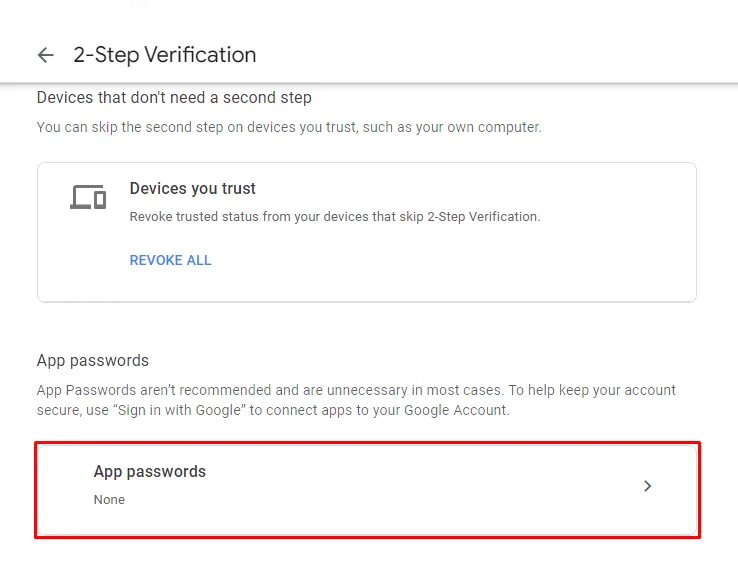
Step 4: Sign in to Gmail once prompted and scroll down to the bottom to find the App Passwords option. Click on App Passwords to proceed.
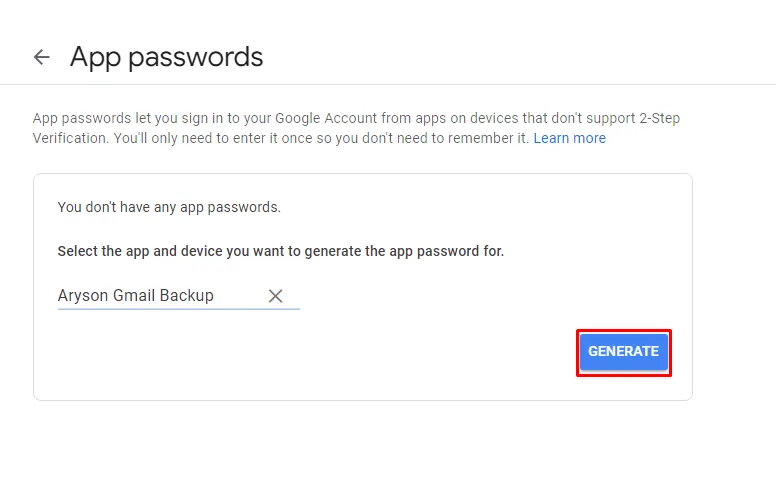
Step 5:At the bottom, choose Select app and choose the app you are using » Select device and choose the device you’re using » Generate.
Step 6: Follow the instructions to enter the App Password. The App Password is the 16-character code in the yellow bar on your device.
Step 7:The App Password is the 16-character code in the yellow bar on your device. Copy & Paste this app-specific password for further use.
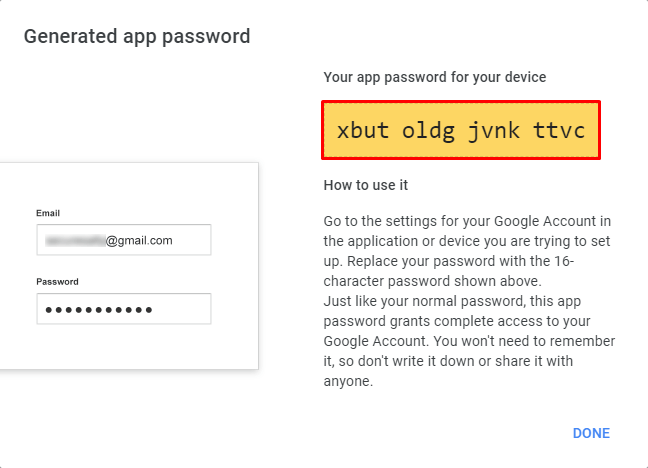
Step 8: Click Done.