How to Create an App Password in FastMail?
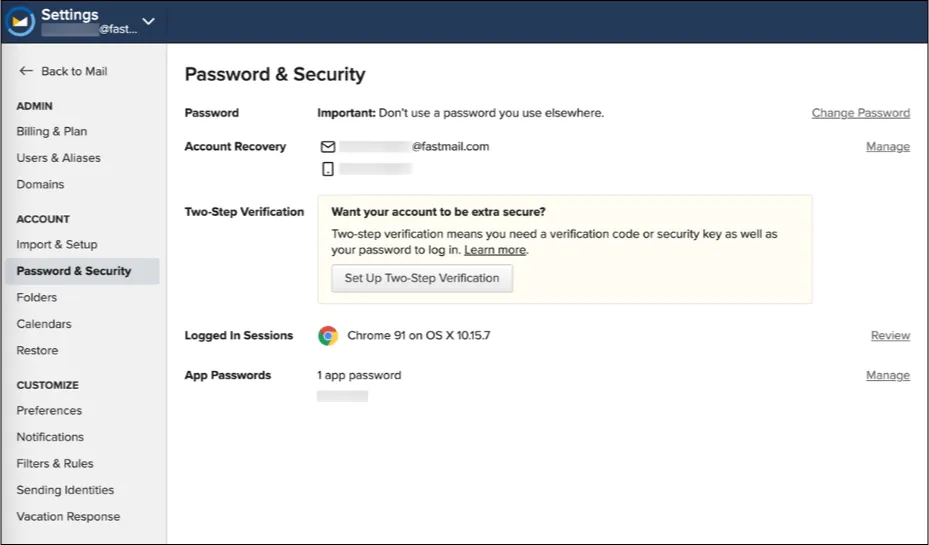
Step 1: Open the Settings → Password and Security screen.
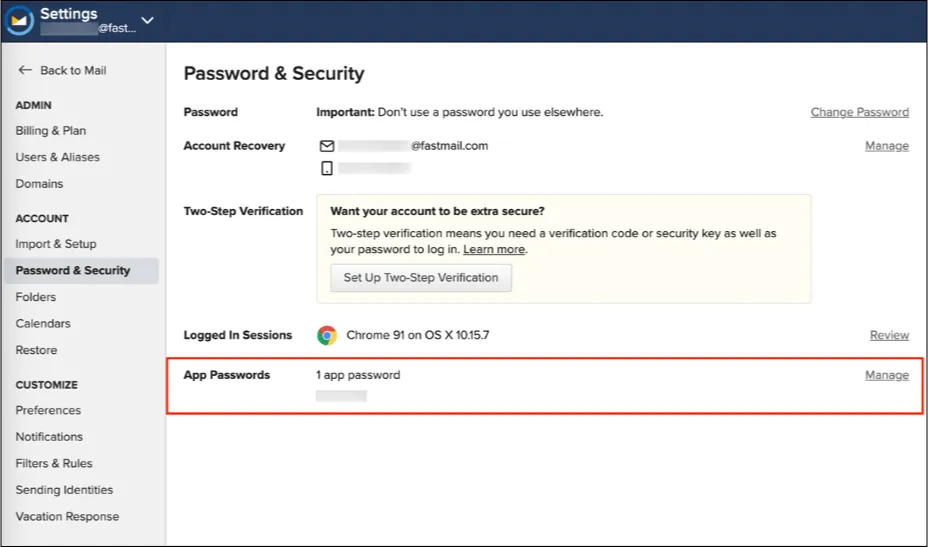
Step 2: Find the Third Party Applications section and click Manage.
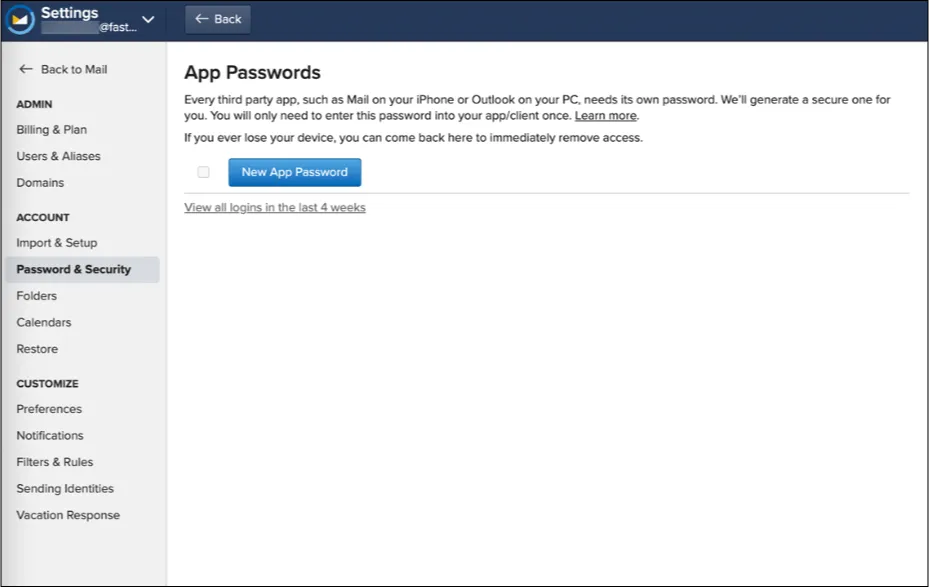
Step 3: Enter your password and click Unlock, then select New App Password.
Step 4: Select a name to identify the password for this application. Some options are provided; if you prefer, you can enter your own descriptive name by selecting Custom.
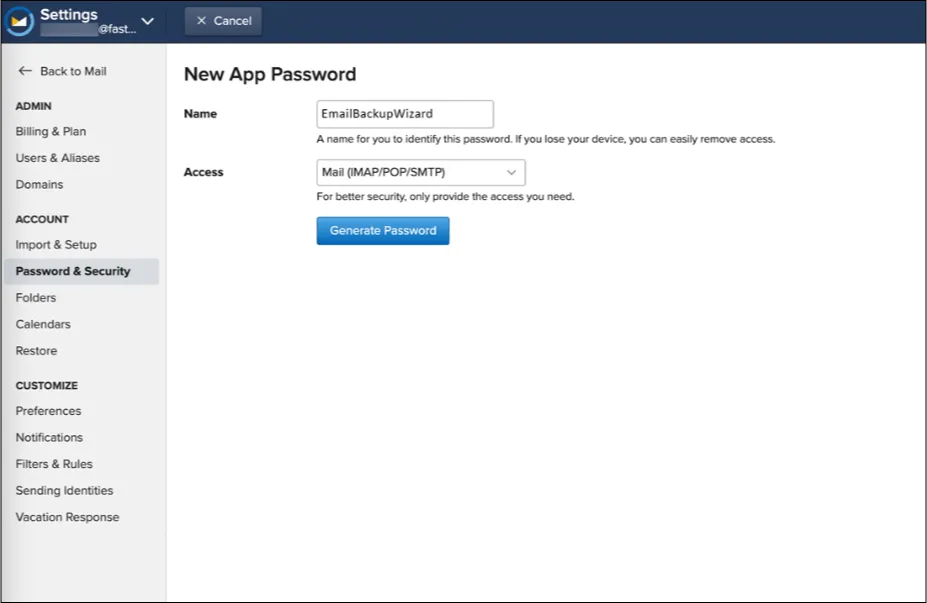
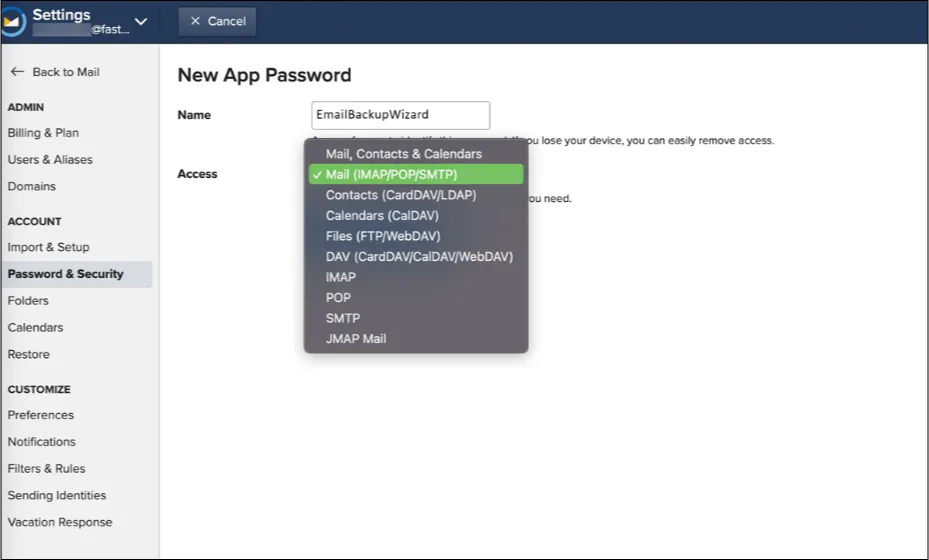
Step 5: Choose what data your application has access to. The default settings for Mail, Contacts, and Calendars give you access to your mail (IMAP / POP / SMTP), your contacts (CardDAV / LDAP), and your calendars (CalDAV). For any application that requires access to the Fastmail Files storage, select Files (FTP / WebDAV).
Step 6: Click Generate Password.
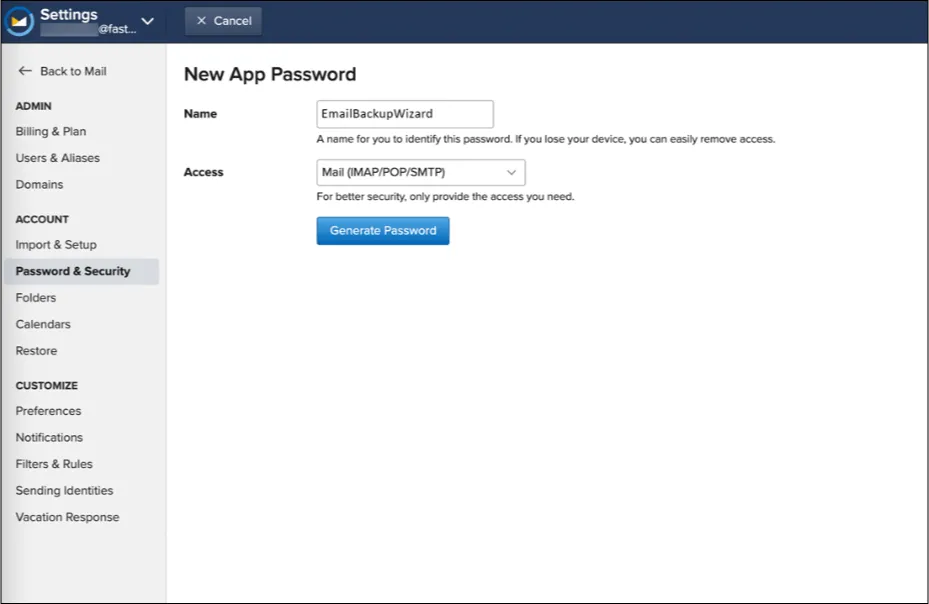
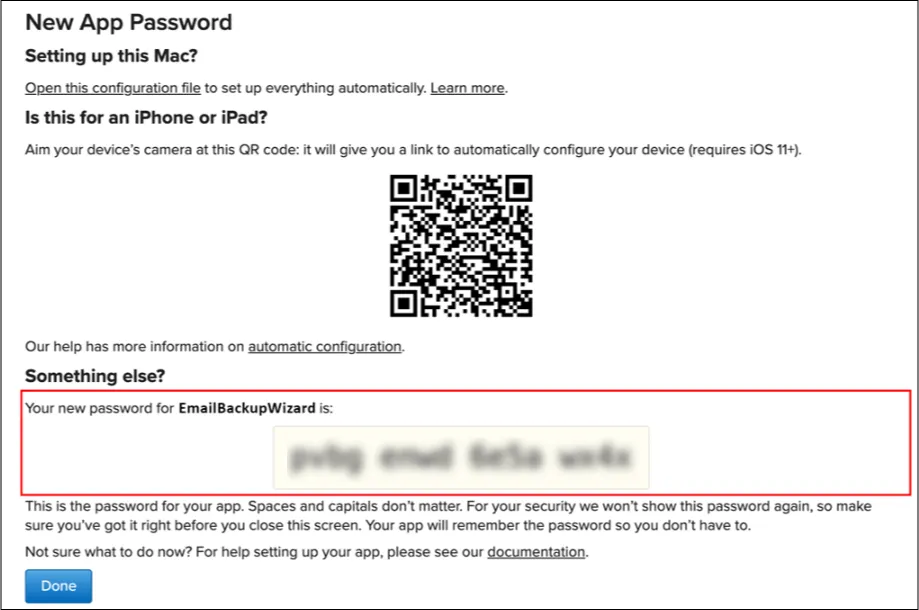
Step 7: Copy and paste the code into the password box for EmailBackupWizard.