How to Create a Secure Mail Key in AT&T?
It’s easy to create a secure mail key from your mobile device, tablet, or computer. Have your User ID and password ready to sign in to myAT&T.
Your AT&T email can end with any of these domains @ameritech.net, @att.net, @bellsouth.net, @currently.com, @flash.net, @nvbell.net, @pacbell.net, @prodigy.net, @sbcglobal.net, @snet.net, @swbell.net, or @wans.net.
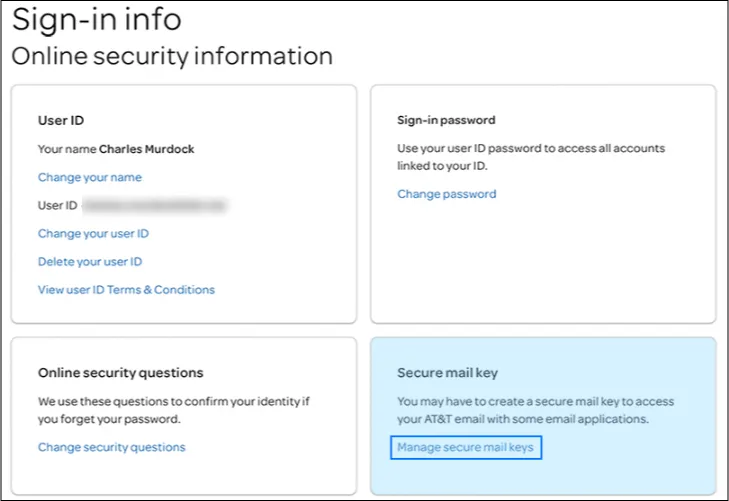
Step 1: Go to Profile and choose Sign in info.
Step 2: Select the email account that needs a secure mail key. (You’ll find a menu at the top if you have multiple accounts.)
Step 3: Scroll to Secure mail key and select Manage secure mail key.
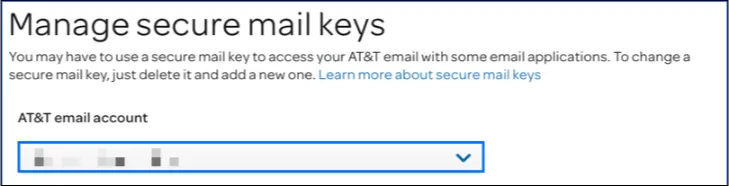
Step 4: Choose the email address that you’d like to use if you have more than one.
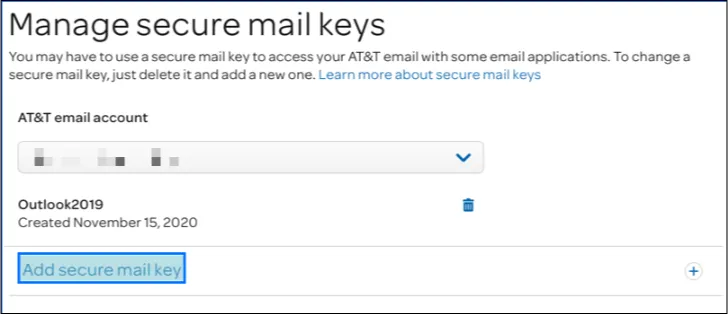
Step 5: Select Add secure mail key and then enter a nickname for the secure mail key to make it easier to recognize.
Step 6: Choose to Create a secure mail key.
Step 7: Select Copy secure mail key to the clipboard. Make a note of your secure mail key, so you have it handy if you need to update an email app on several devices.
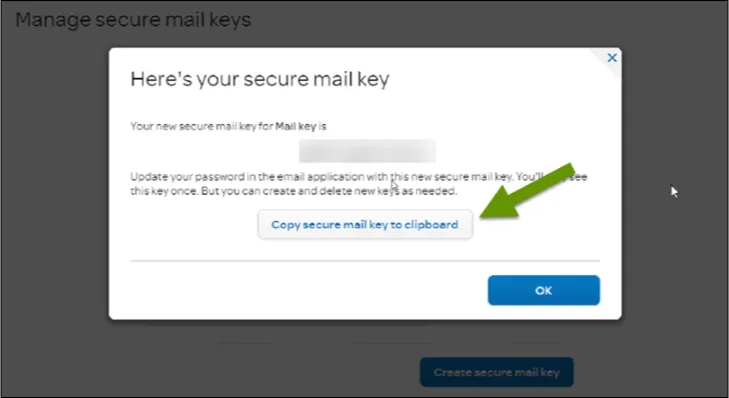
For security purposes, the secure mail key only displays until you select OK.
If you lose or forget the secure mail key, you can create new secure mail keys.
Step 8: Select OK
Step 9: Copy and paste the code into the password box for EmailBackupWizard.